


Hello. This is the LETR WORKS team.
We are pleased to announce our regular update for December 2025. This update introduces new features, performance enhancement, and various improvements to optimize your experience.
The latest version, v2.10.1, was officially deployed on December 29 at 17:00 KST.
--------------------------------------------------------------------------------------
At LETR WORKS, we are developing the Media Content Kit to provide secure, seamless storage, management, and distribution of your valuable media assets. As the first milestone of this project, we have officially launched the DRM-based Video Content Sharing feature. We are committed to expanding this kit to better support your media management and promotional workflows.
Media content creators frequently distribute teaser videos via email to domestic and international distributors for promotional purposes. However, this process often carries the risk of unauthorized leaks, and it is traditionally difficult to track how engaged recipients are with the sent content.
To address these pain points, LETR WORKS has introduced the Video Sharing feature. By utilizing this feature, you can benefit from:
1) Enhanced Security with DRM: Apply Digital Rights Management (DRM) to shared videos (such as teasers) to prevent unauthorized distribution and leaks.
2) Email-Verified Access: Ensure that shared content can only be accessed by authorized recipients through email authentication.
3) Streamlined Workflow: By simply entering an email address, DRM and authentication are applied automatically—no complex setup required.
4) Comprehensive Engagement Analytics: Access detailed sharing statistics, including view counts, total watch time, completion rates, and viewer lists. These insights allow you to measure and manage the promotional performance of your shared media effectively.
LETR WORKS now allows you to generate a Video (Share) Page for promotional and distribution purposes once the transcription or translation is complete.
Please note that this feature is applicable only to projects with a "Complete" status. While Owners and Admins have full access to this feature, please be advised that access is restricted for general Users (workers). We recommend keeping these permission settings in mind for your workflow.
Step-by-Step Guide:
1) In the Workspace, click the ‘Expand Info (∨)’ button on the left side of a completed project.
2) Click the ‘More (···)’ button located at the far right of the expanded info section.
3) Select "Create Video Page" from the menu.
4) In the "Create Share Page" pop-up, enter the recipient's email address and select your preferred resolution and expiration period. Then, click the "Create Share Page" button at the bottom right to finalize.
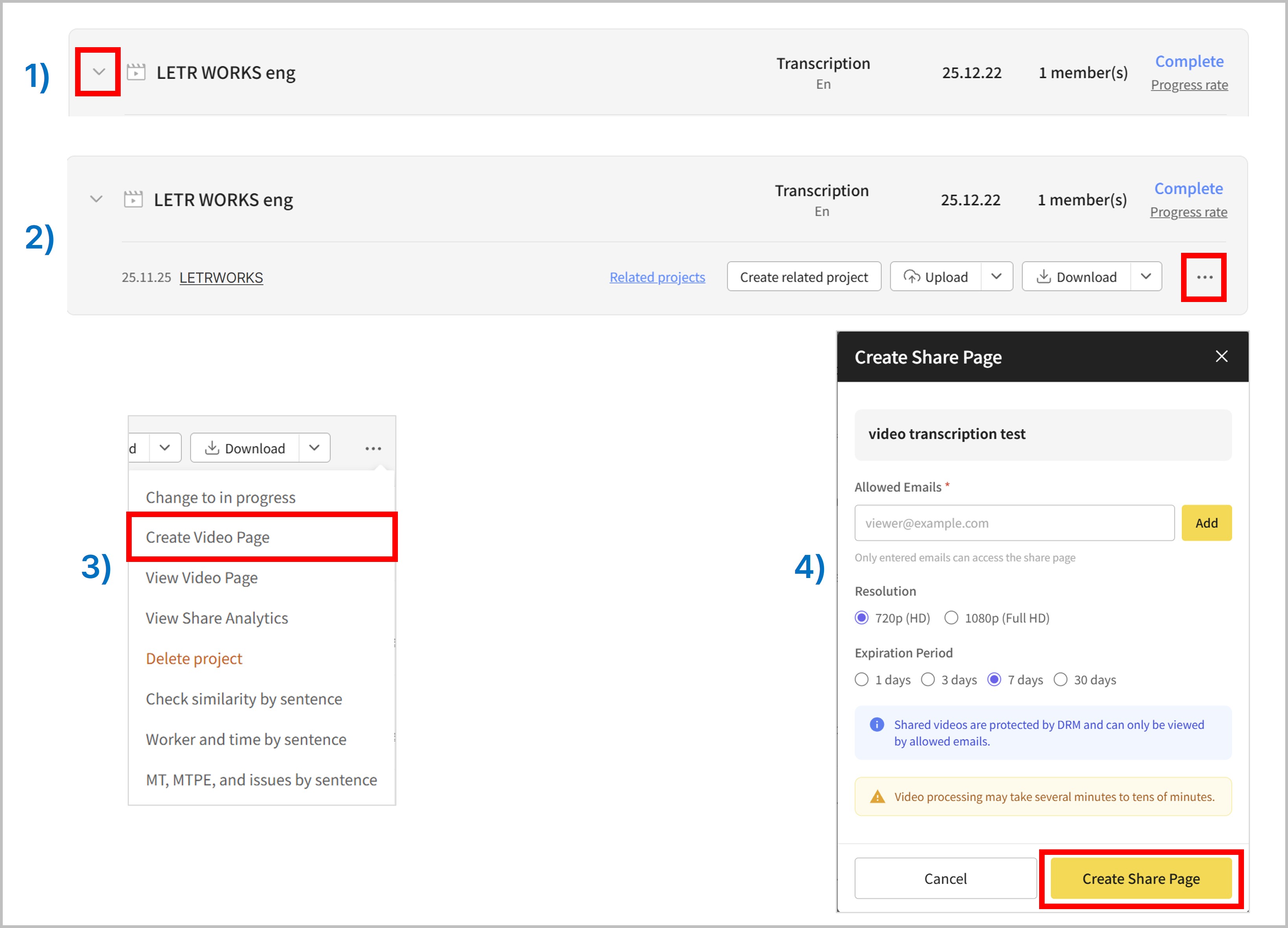
Once a share page is created, the shared video is protected by DRM and can only be accessed by "Allowed Emails."
※ Modifying Video Sharing (Link) Settings
1) Even if a share page has already been created for a project, you can modify its settings at any time by selecting the "Create Video Page" menu again. This will open the "Edit Share Settings" pop-up window.
2) You can add new recipients by clicking the "Add" button to the right of the "Allowed Emails" field. To revoke access for a previously added email address, simply click the "X" button next to that specific address.
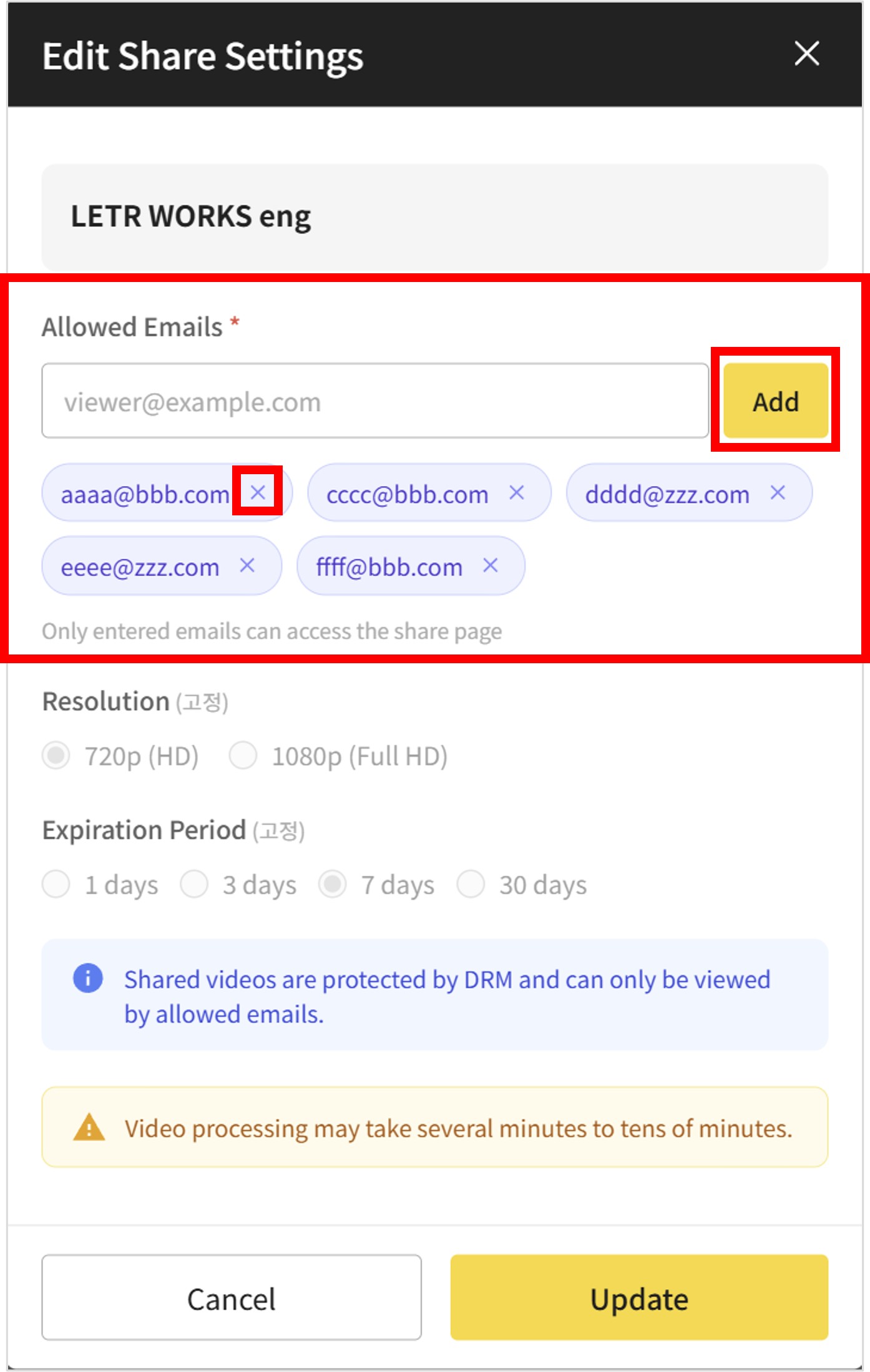
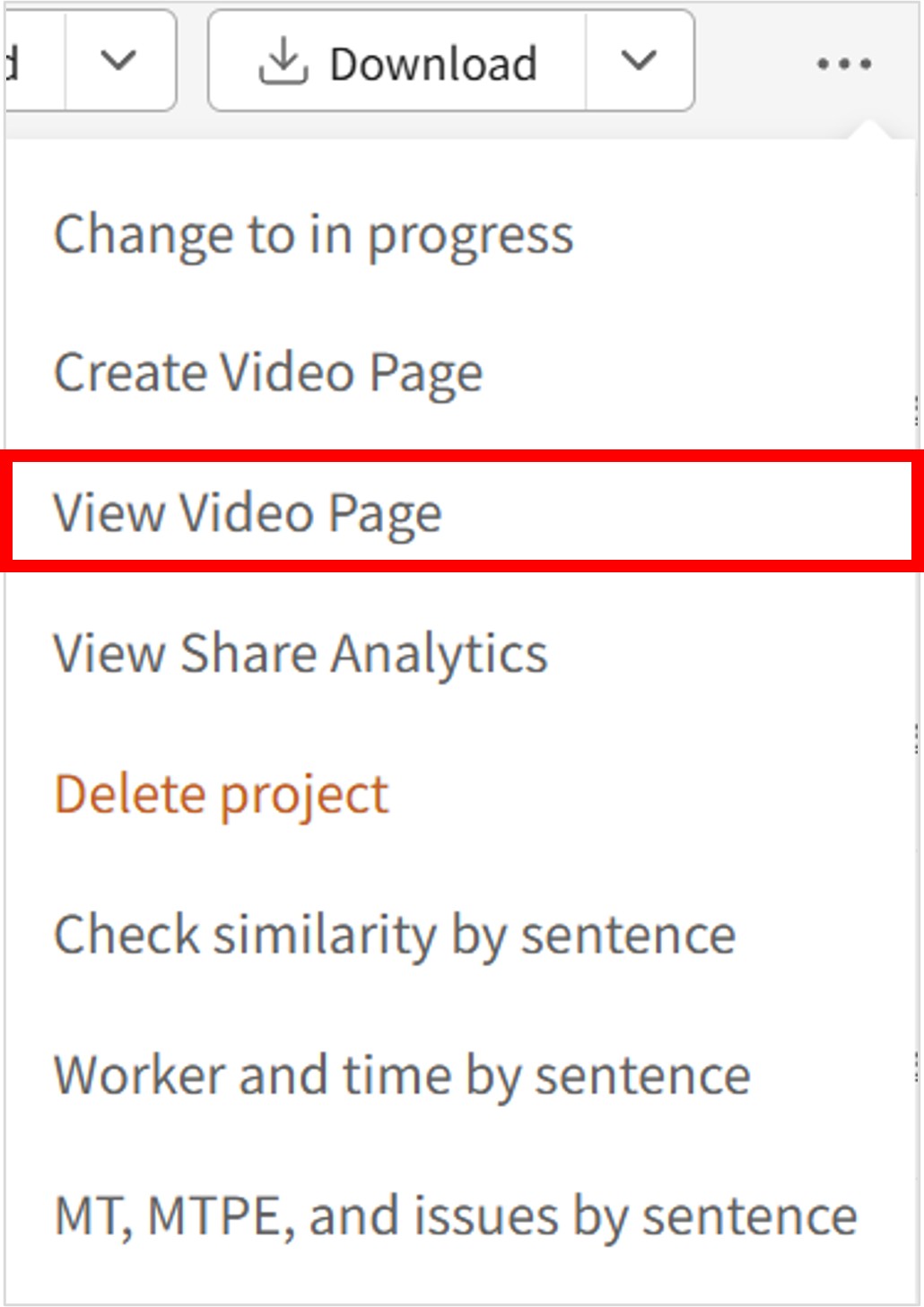
Once a share page is created, a unique link is generated for viewing the video. You can access and copy this link using the "View Video Page" feature.
1) In the Workspace, click the ‘Expand Info (∨)’ button on the left side of the project for which the share page was created.
2) Click the ‘More (···)’ button at the far right of the expanded info section.
3) Select "View Video Page" from the menu to open the viewing link.
Selecting "View Video Page" will redirect you to the Email Verification page as shown below. This page provides access to the unique "Viewing Link" for your video project. Simply copy the link from your browser's address bar or the sharing interface to begin your media promotion and distribution.
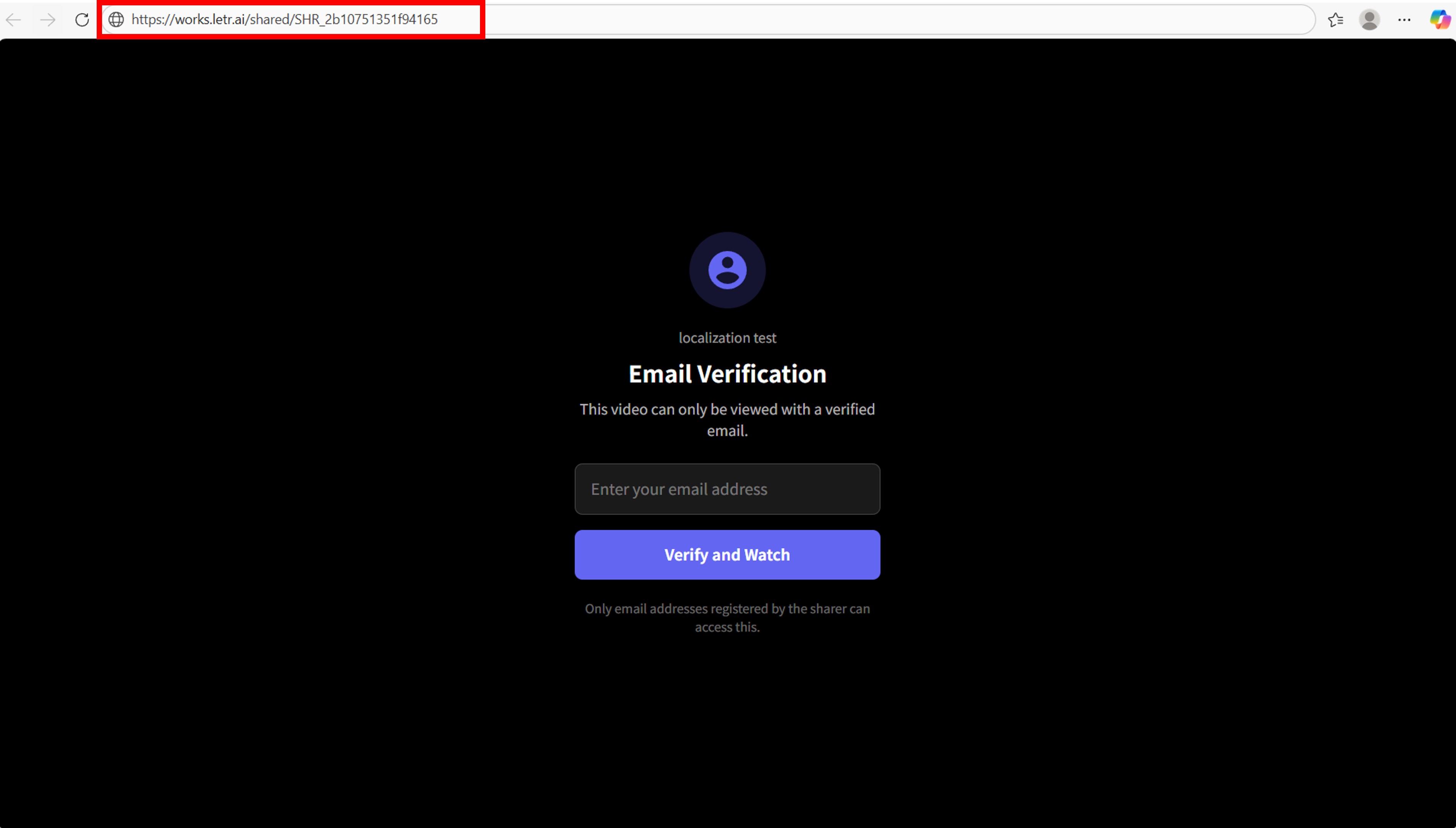
After entering your email address and clicking the "Verify and Watch" button, the shared video will be available for viewing directly within your web browser. Please remember that access is strictly limited to the "Allowed Emails" pre-registered during the "Create Video Page" setup.
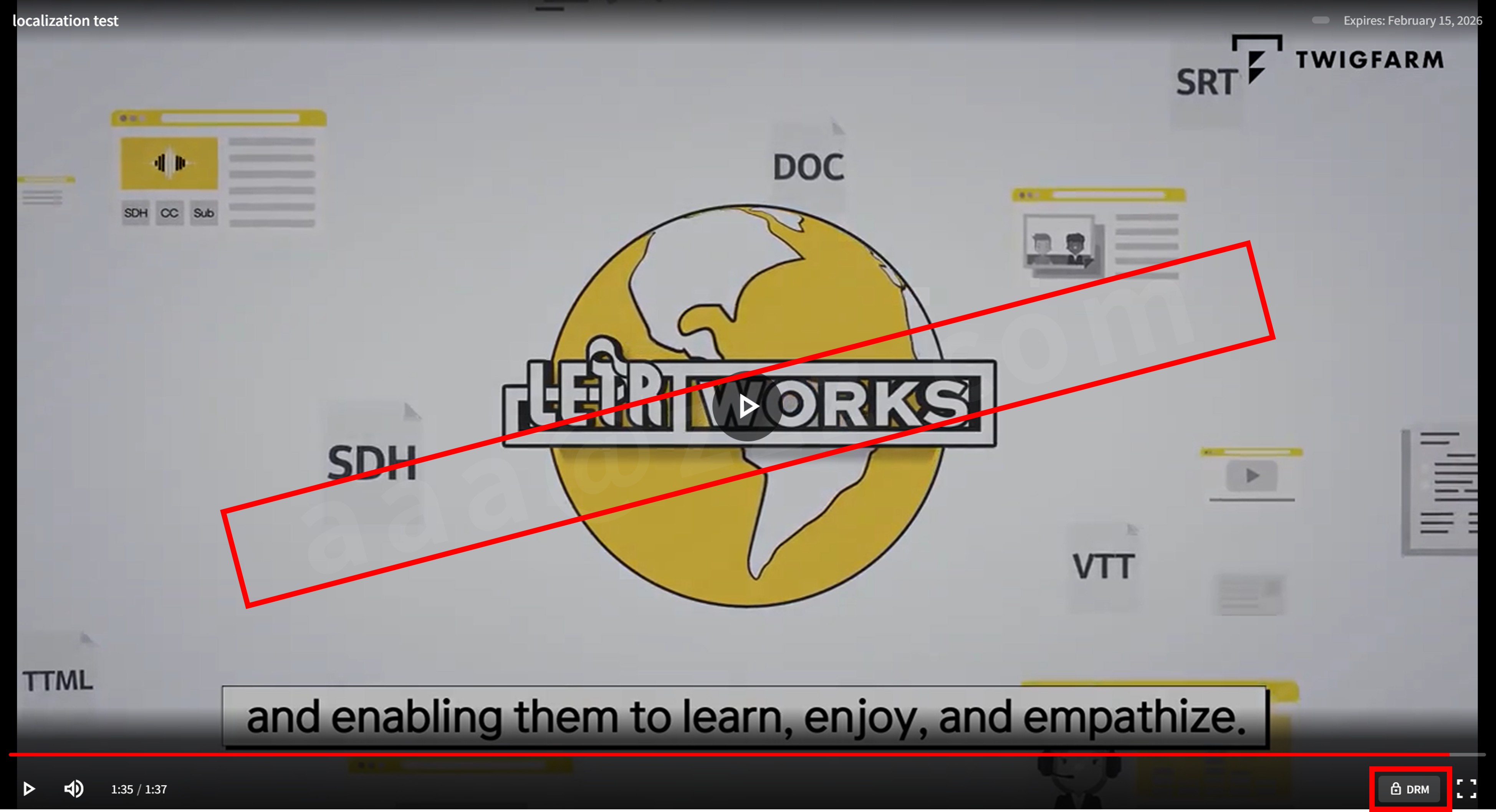
To ensure maximum copyright protection, all shared videos are secured with DRM and Dynamic Watermarks. The watermark is applied in a semi-transparent white to protect your content without interfering with the viewing experience.
A comprehensive dashboard is now available to help you monitor and manage the promotional performance of your shared videos.
This dashboard allows you track key viewing metrics and in-depth analytical data. Key metrics include Total Views, Unique Viewers, Total Watch Time, Average Watch Time, Average Completion Rate, and Average Attention. Furthermore, features such as the Viewing Heatmap, Completion Rate Distribution, and Detailed Viewer List allow for a more granular analysis of audience behavior.
How to Access the Share Analytics Page:
1) In the Workspace, click the ‘Expand Info (∨)’ button on the left side of the project for which the share page was created.
2) Click the ‘More (···)’ button at the far right of the expanded info section.
3) Select "View Share Analytics" from the menu.
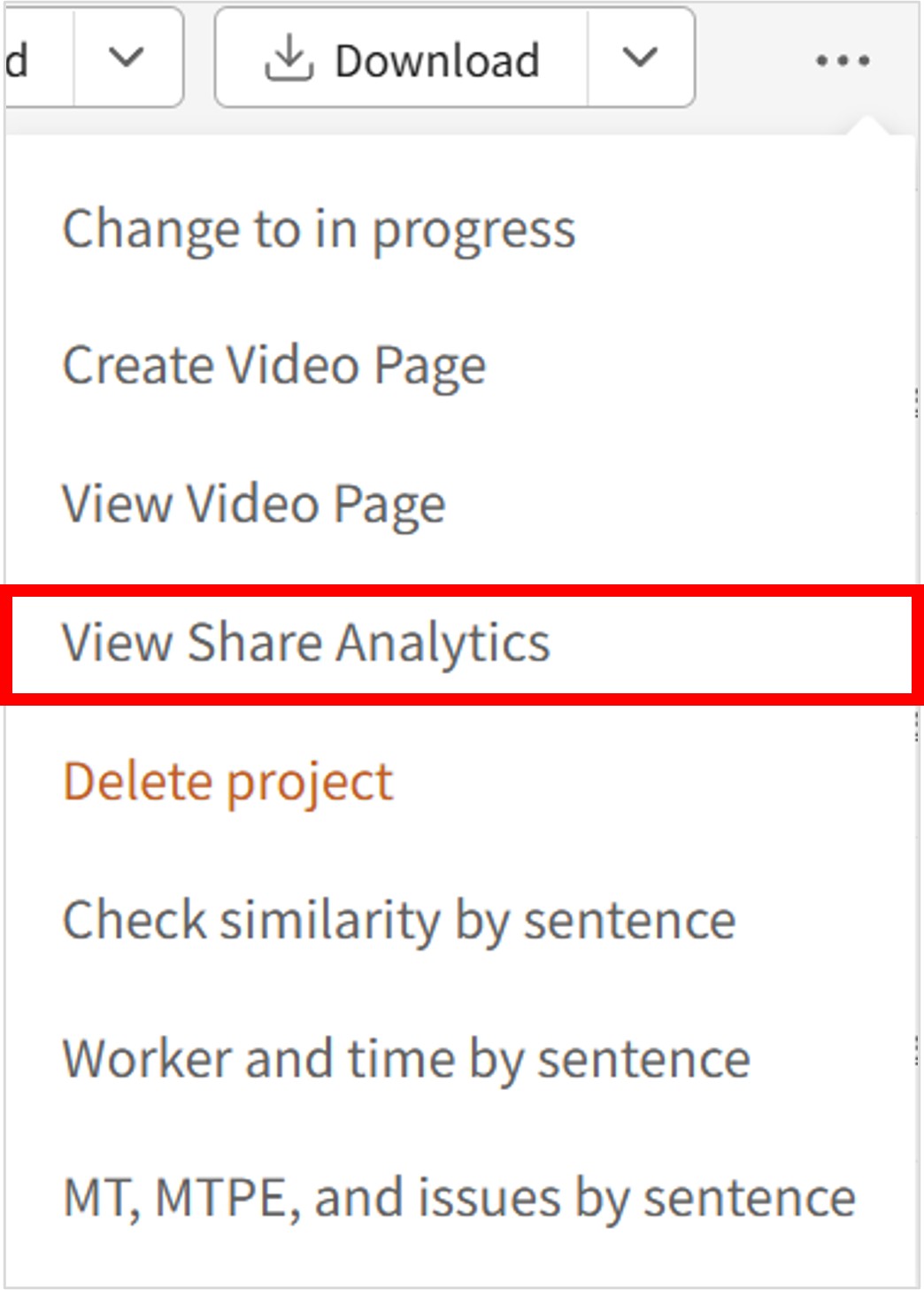
Selecting "View Share Analytics" will take you to the Share Analytics Dashboard. The details for each metric provided are as follows:
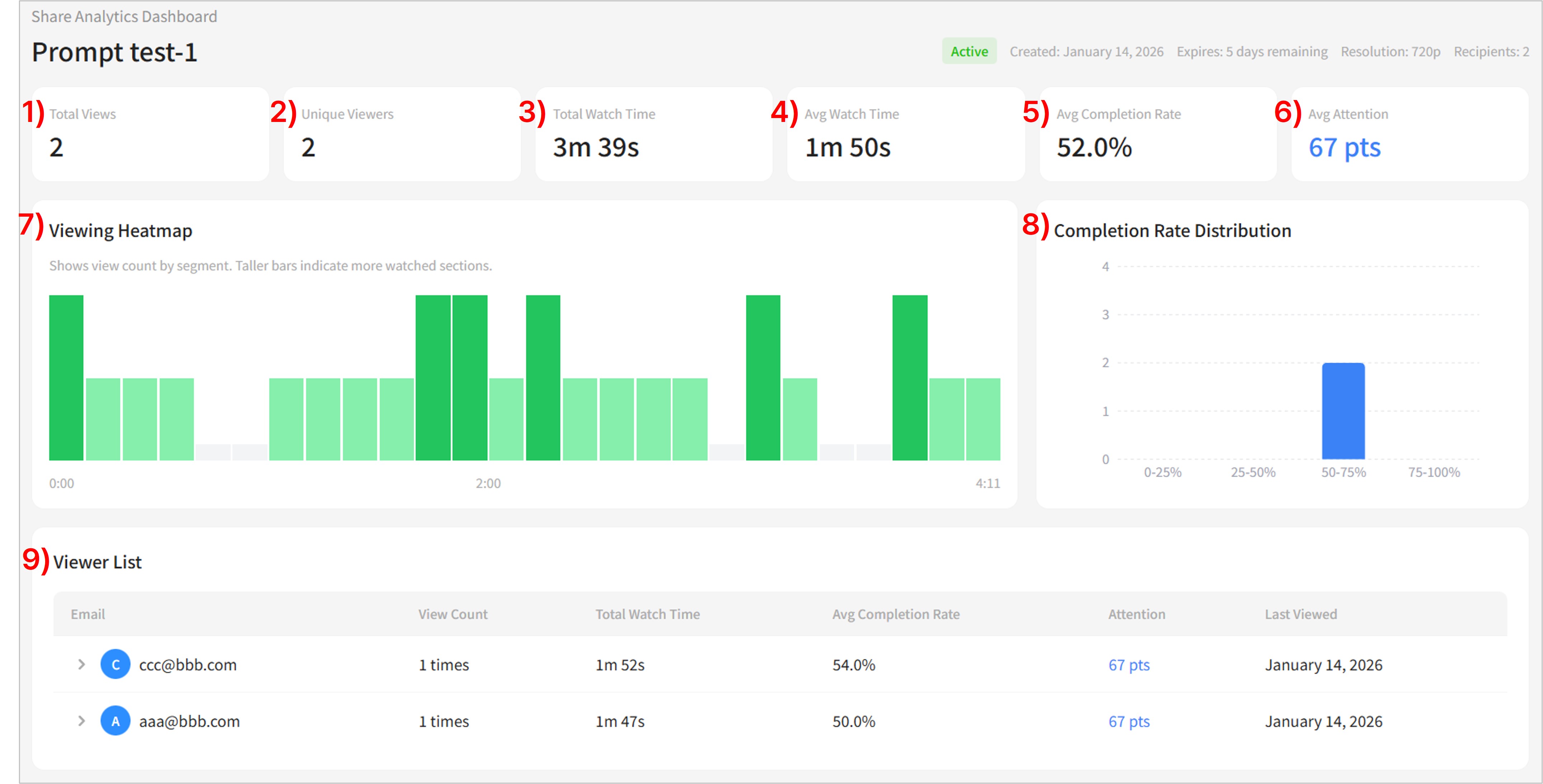
1) Total Views: The aggregate number of views for the shared video.
2) Unique Viewers: The total number of individual viewers who have accessed the video.
3) Total Watch Time: The combined duration of time spent watching the video by all viewers.
4) Avg Watch Time: The average duration of each viewing session, calculated by dividing the total watch time by the total number of views.
5) Avg Completion Rate: The average percentage of the video watched across all viewing sessions, based on the full video length.
6) Avg Attention: A composite metric that quantifies how deeply viewers engaged with the shared video.
7) Viewing Heatmap: A visual representation showing view counts by segment; taller bars indicate sections that were watched more frequently.
8) Completion Rate Distribution: A graph illustrating the distribution of completion rates across all individual viewers.
9) Viewer List: A detailed breakdown providing specific viewing session data for every viewer.
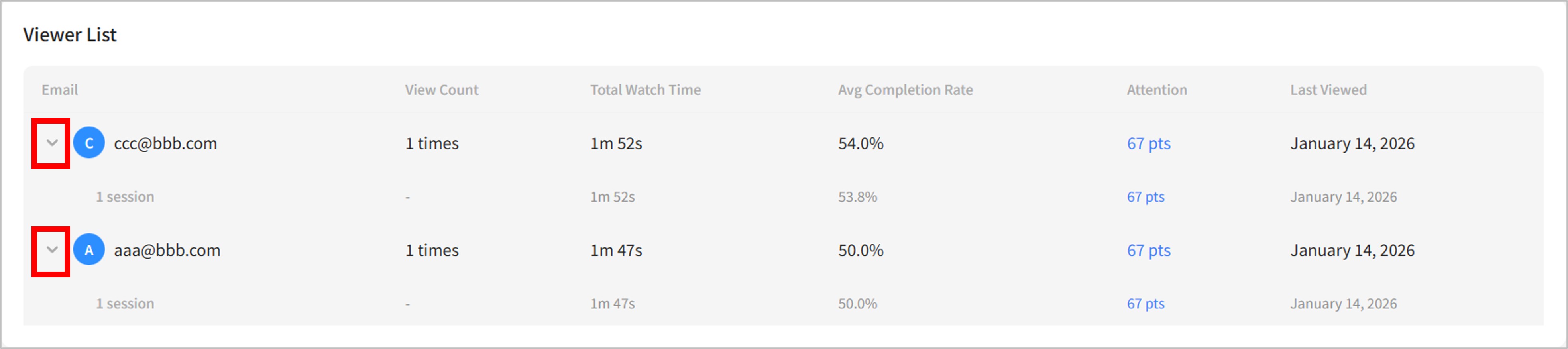
In the Viewer List section at the bottom of the dashboard, you can click the Expand Info (∨) button on the left to view specific details for each viewer. This allows you to track the number of views per individual and access granular data for each specific viewing session.
With the new "View Share Analytics" feature in LETR WORKS enables real-time monitoring audience engagement for your shared video content at a glance. From high-level summary metrics to the specific viewing behaviors of individual users, this tool empowers you to measure and manage your content promotion with unprecedented efficiency. We invite you to explore these new capabilities and leverage them for your success!
LETR WORKS offers "LLM Translation" by integrating ChatGPT via API, recognized for its superior translation performance. With this latest update, we have launched the LLM Prompting feature. This allows you to provide specific translation guidelines or instructions to the AI during multilingual translation tasks, ensuring more accurate and tailored results.
When creating a "New project" or a "Related project" within the Workspace, the Prompt feature will be activated. This feature is exclusive to "Translation" tasks and allows you to freely input instructions regarding tone, style, and specific terminology (such as proper nouns).
How to Use LLM Prompts:
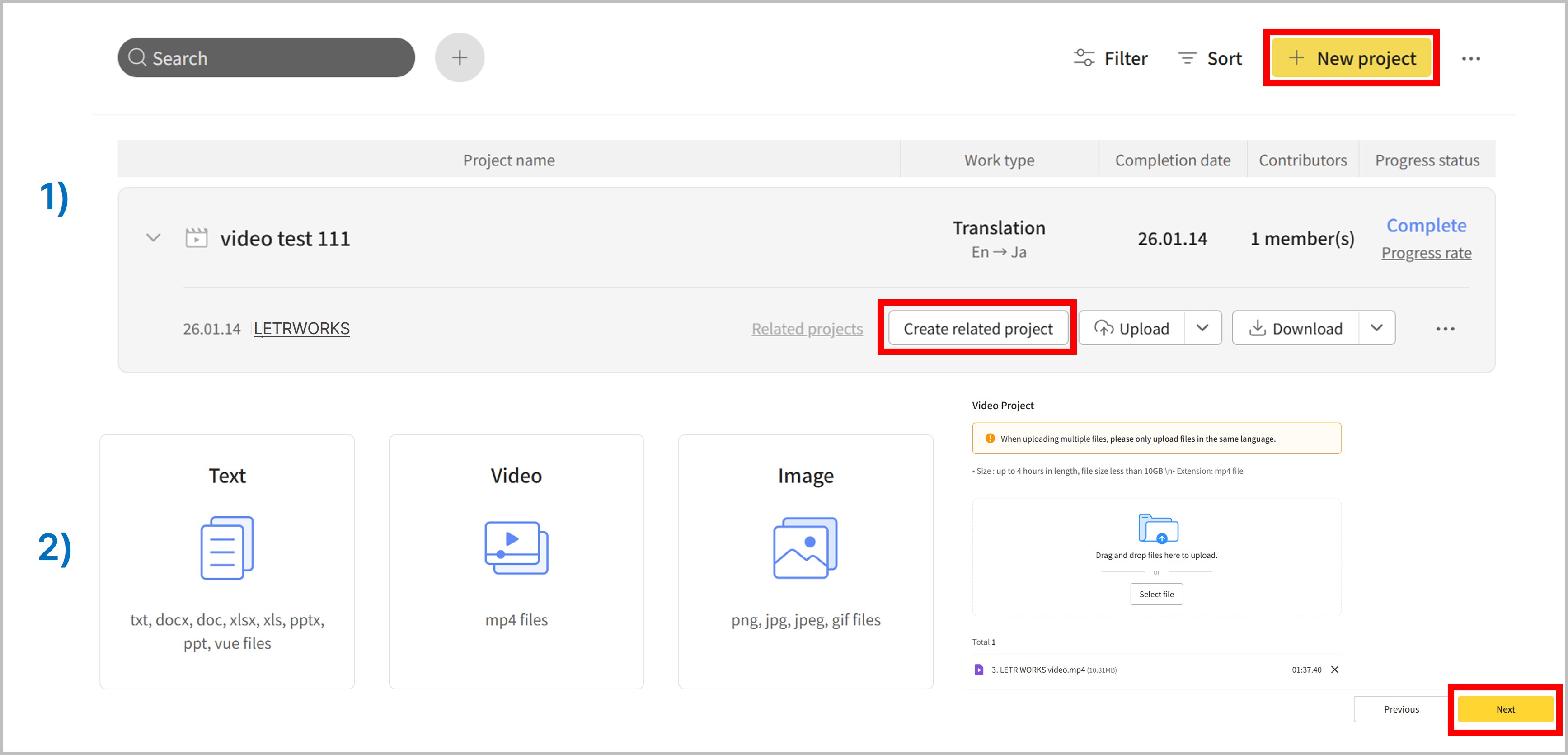
1) Click either the "+ New project" or "Create related project" button.
2) Select the content format (Text, Video, or Image), upload your source file, and click the "Next" button at the bottom right.
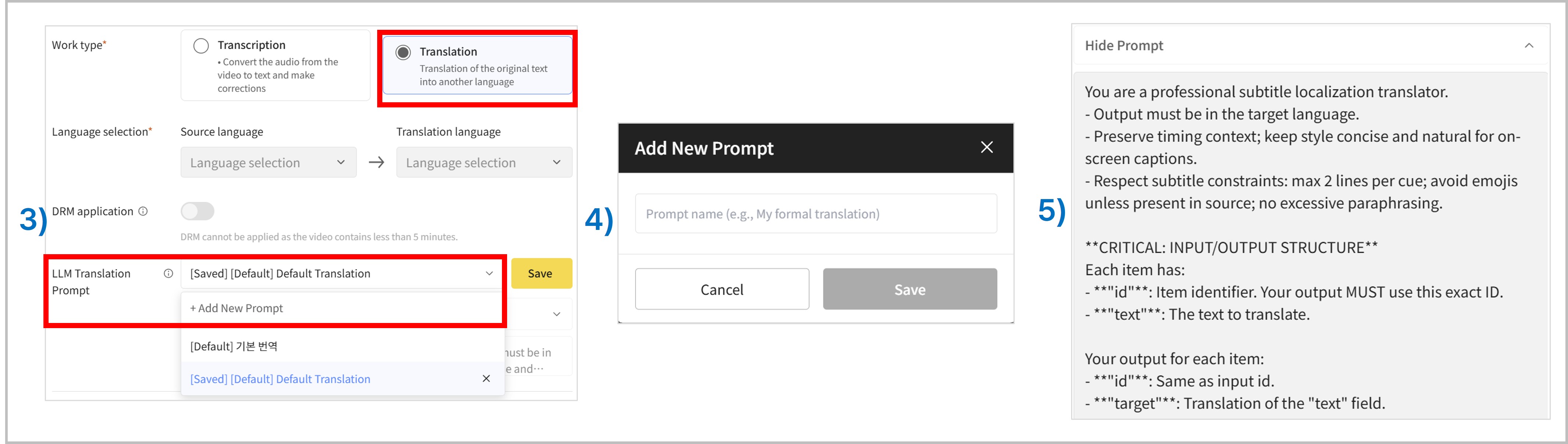
3) Select "Translation" under the 'Work type' section to enable the "LLM Translation Prompt" feature. Click the Expand (∨) button and select "+ Add New Prompt" to open the pop-up page.
4) Enter a name for your prompt in the pop-up and click "Save" to activate it.
5) Enter your desired translation style, tone, or any other specific requirements in the prompt window. These instructions will be directly applied during the translation process.
※ Getting the Most Out of LLM Prompts
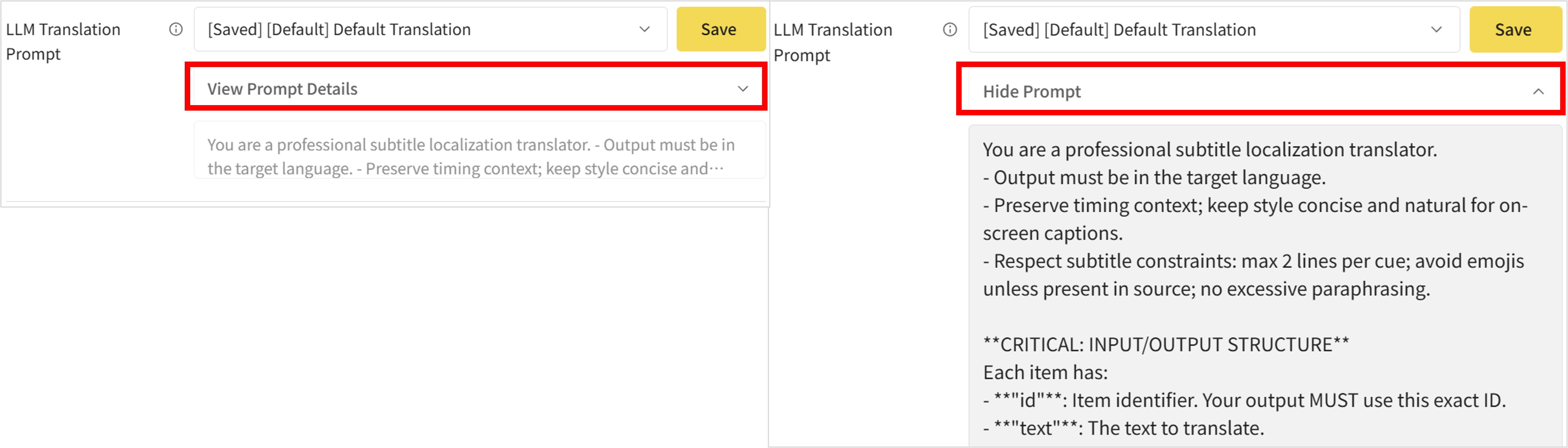
1) To help you achieve the best possible results, LETR WORKS provides a pre-configured "Default Translation" prompt designed to maximize the AI’s performance. We highly recommend using or referring to this default prompt as a baseline when creating your own custom instructions for high-quality translations.
2) The prompt field supports up to 20,000 characters, giving you the freedom to provide detailed instructions. For a more organized workspace, you can use the "View Prompt Details" and "Hide Prompt" toggles to easily expand or collapse the input area while reviewing your content.
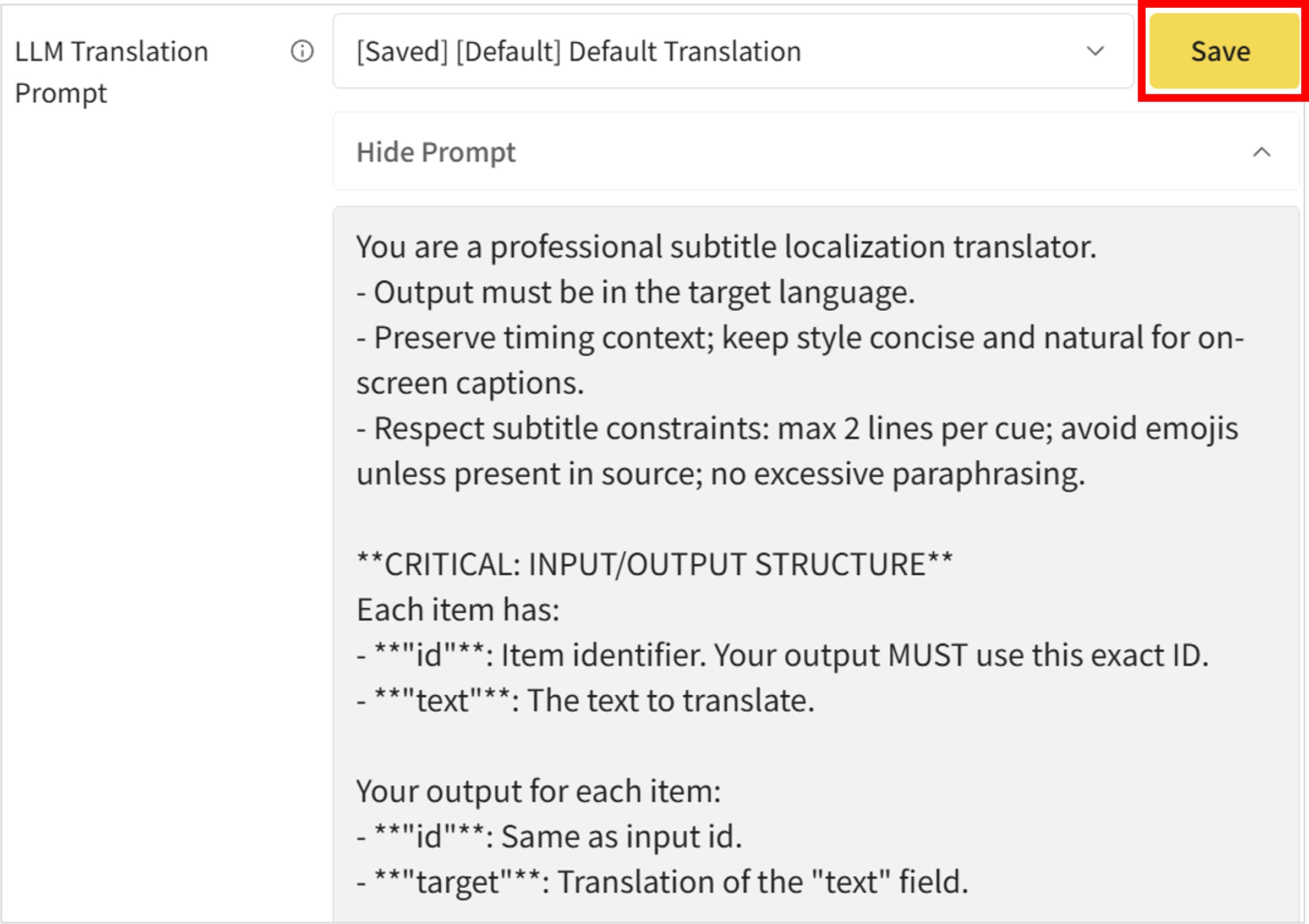
To apply any additions or amendments made to a prompt, you must click the "Save" button. Prompts can be customized during the project creation phase. Once saved, these customized prompts can be easily reused for future projects, allowing for a more consistent and efficient workflow.
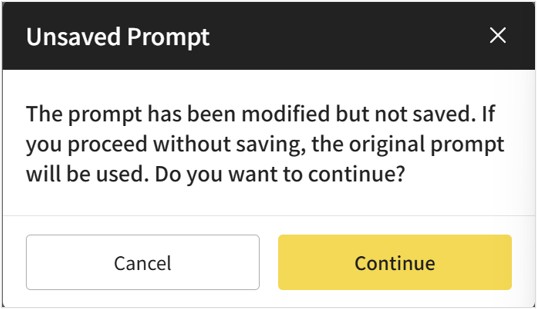
If you attempt to proceed without saving your modified prompt, an "Unsaved Prompt" warning message will appear as shown below.
By clicking the "Continue" button, the translation will proceed using the original, unsaved version of the prompt. To ensure your new guidelines are applied, please make sure to save your changes before moving forward.
We have enhanced the Batch Operations feature to allow for the simultaneous creation of multiple projects and the bulk modification of project information. This improvement is designed to provide greater convenience and efficiency when managing or executing numerous projects at once.
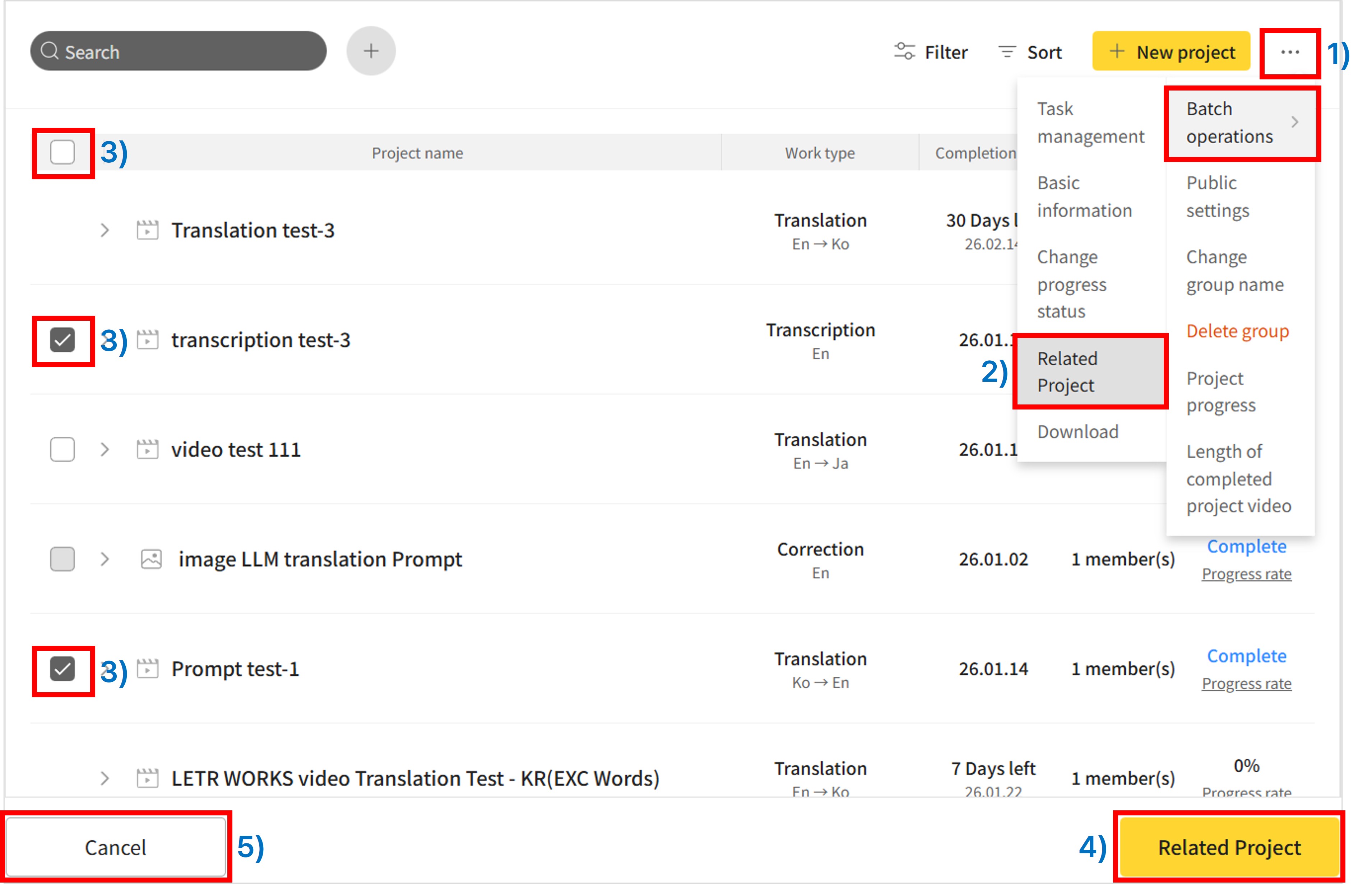
You can now create multiple related projects in a single workflow. Follow these steps to use the feature:
1) In the Workspace, click the More (···) button in the top right corner.
2) Navigate to Batch operations > Related Project to activate the bulk selection mode.
3) Select the projects you wish to include by clicking the checkboxes on the left side of each project.
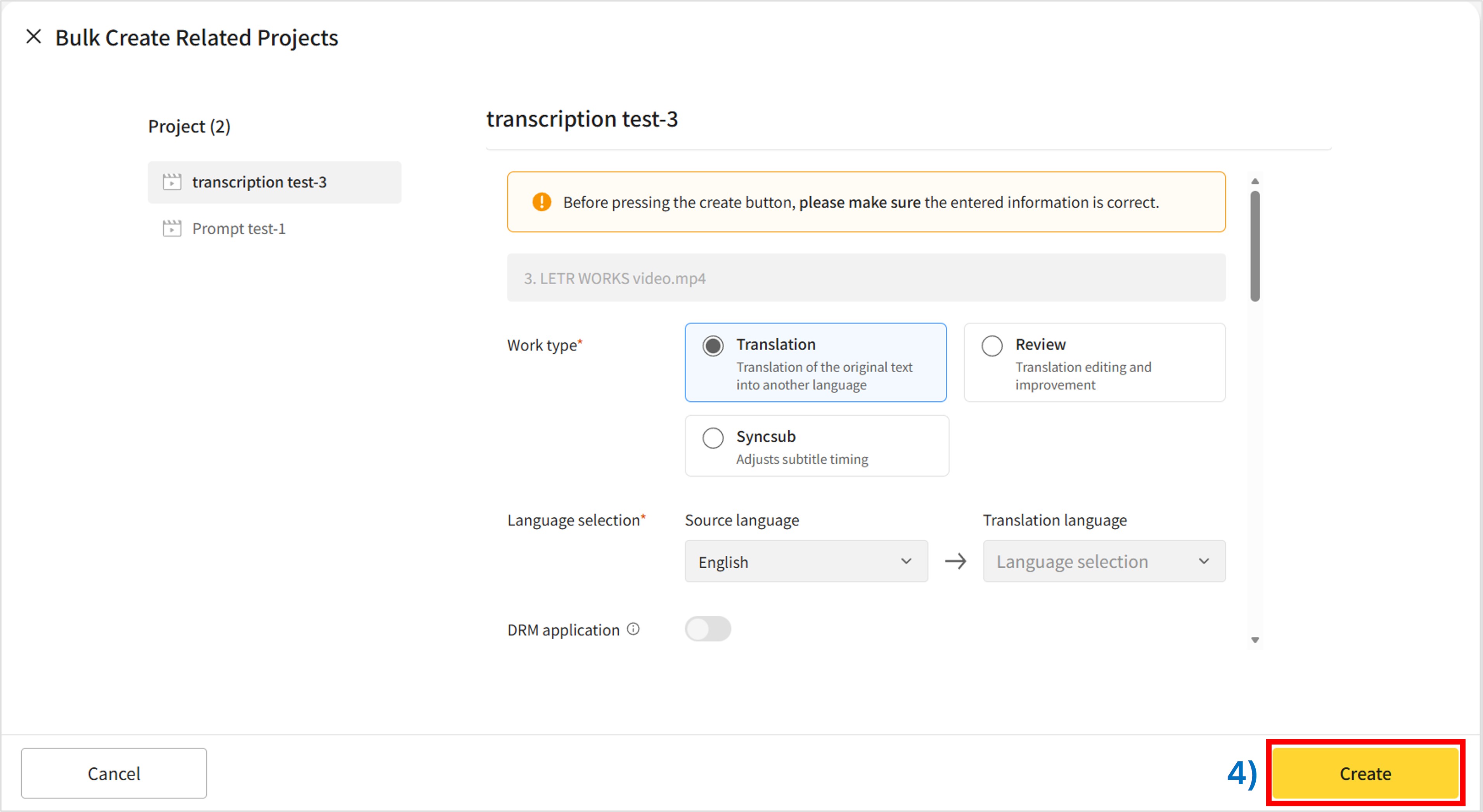
4) Click the "Related Project" button at the bottom right. After entering the necessary details (such as Work type and Language selection), click the "Create" button at the bottom right to generate the projects in bulk.
5) If you wish to exit this mode, simply click the "Cancel" button at the bottom left to deactivate the bulk selection feature.
This feature allows you to update the basic information of multiple projects simultaneously. This enhancement simplifies the modification process across various tasks, significantly boosting operational efficiency.
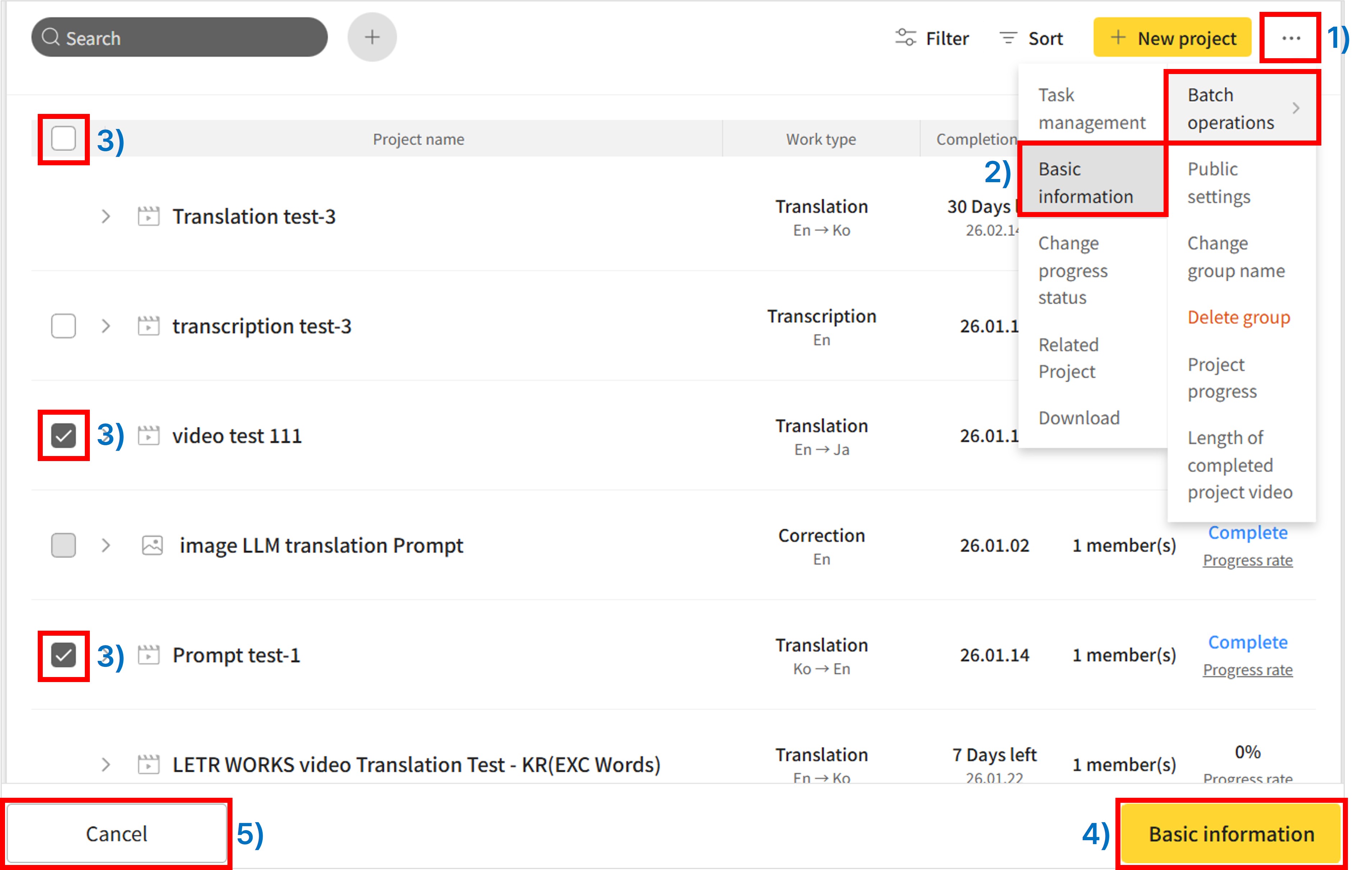
How to Use the Bulk Modification Feature:
1) In the Workspace, click the More (···) button in the top right corner.
2) Navigate to Batch operations > Basic information to activate the bulk selection mode.
3) Select the projects you wish to modify by clicking the checkboxes on the left side of each project.
4) Click the "Basic information" button at the bottom right. After entering or selecting the updated information in the "Batch task management" window, click the "Save" button at the bottom right to apply the changes in bulk.
5) If you wish to exit this mode without making changes, simply click the "Cancel" button at the bottom left to deactivate the bulk selection feature.
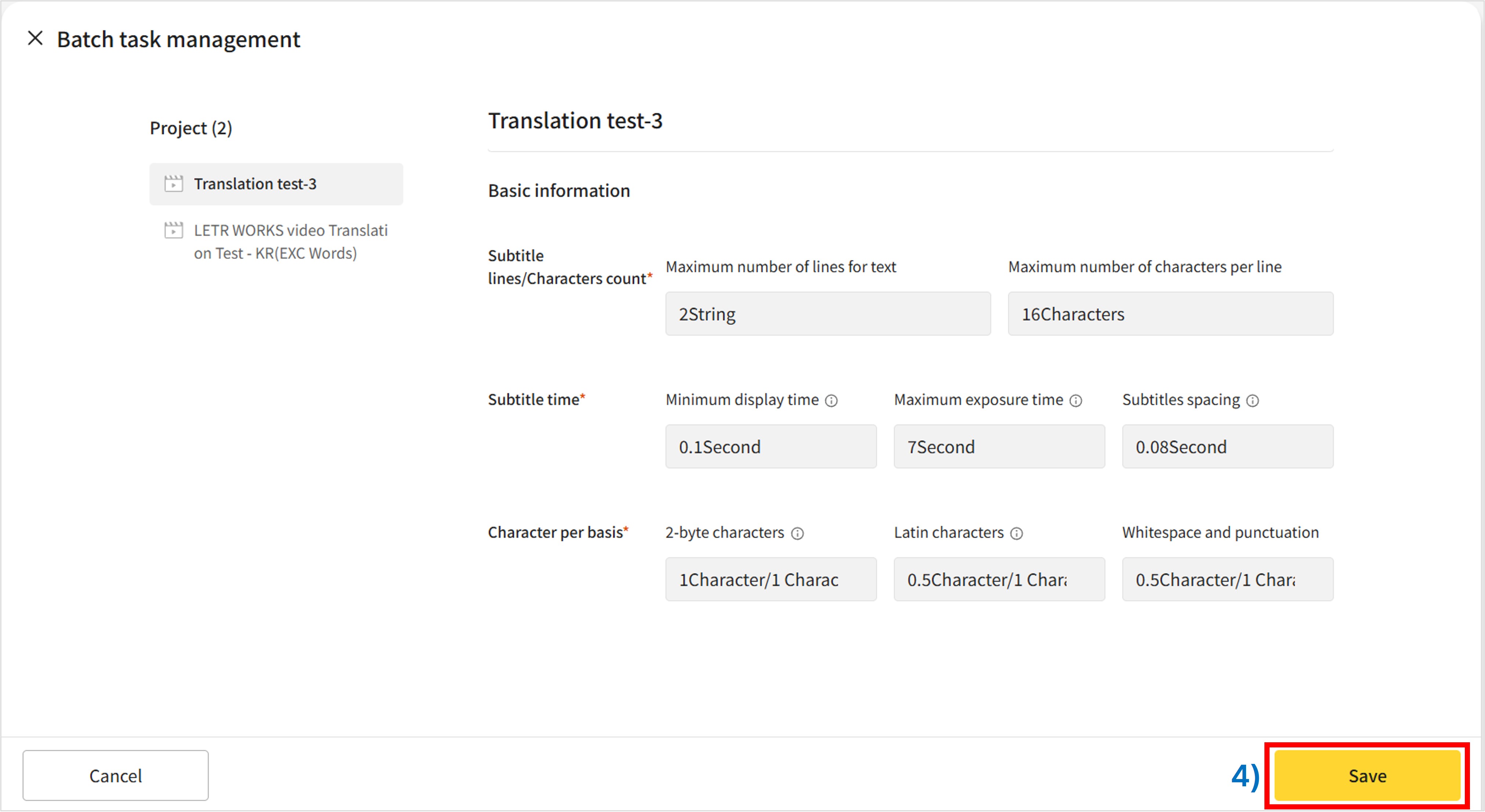
※ Important Notes on Bulk Operations
When using the Bulk Create Related Projects or Bulk Modification of Basic Information features, you can only select projects that are of the same content type (Video, Image, or Text) as the project you initially selected. For example, if you first select a video project, you will only be able to perform bulk operations on other video projects; image or text projects will be excluded from the selection.
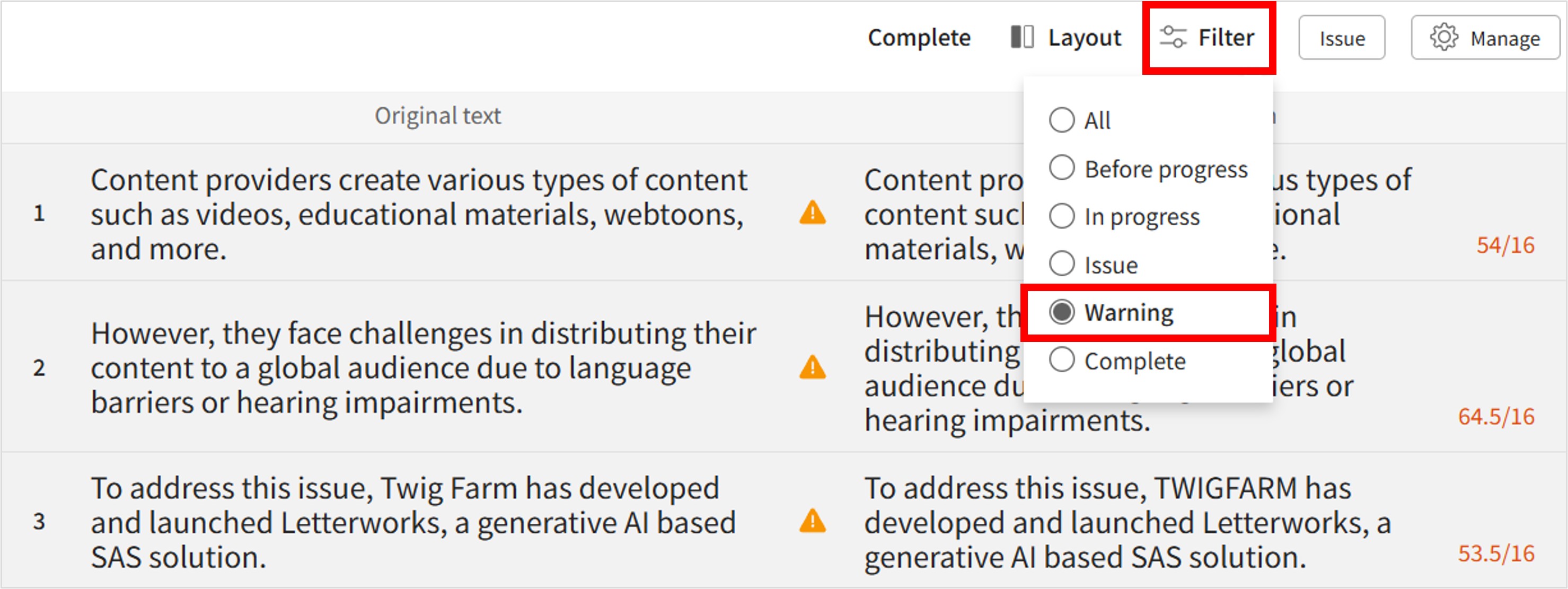
In the project editor, the "Filter" feature allows you to sort and view sentences based on their current task status, such as "Before progress," "In progress," or "Complete". With this update, we have enhanced the filter to include a "Warning" status, enabling you to specifically isolate and review sentences that require extra attention.
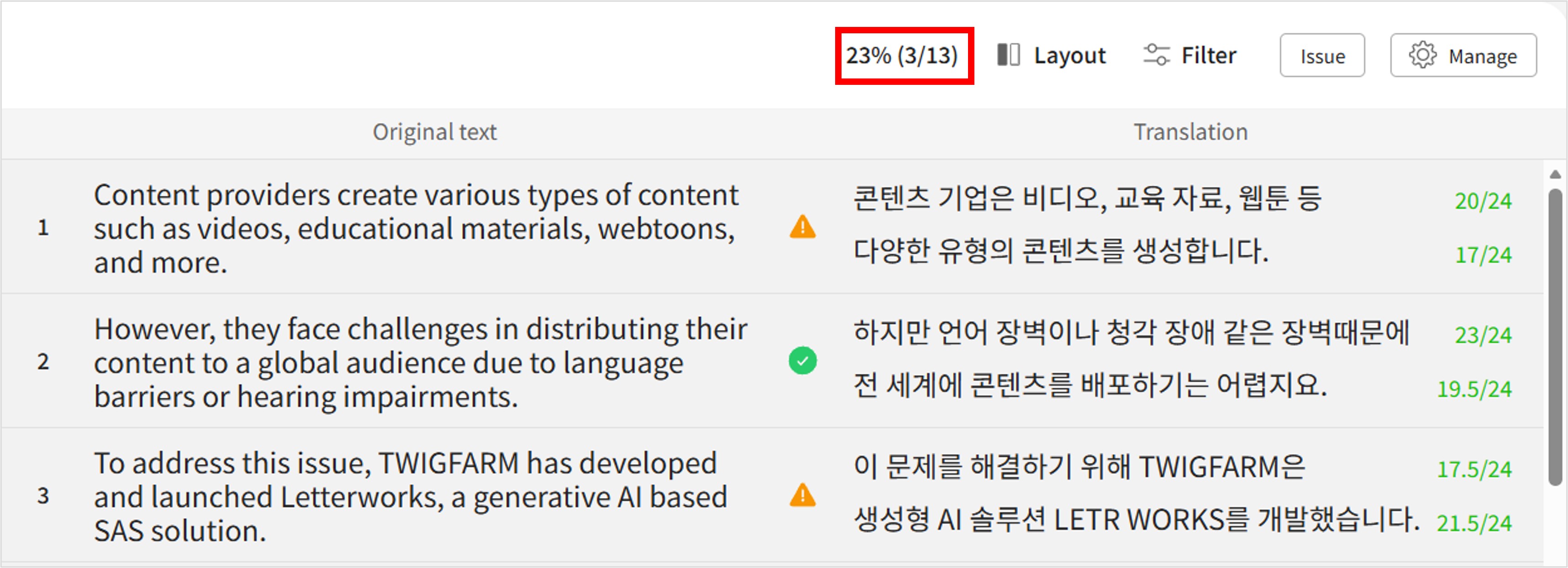
We have improved the progress indicator within the project editor to provide a more detailed view of your current task status. Previously, only the completion percentage was visible. With this update, the editor now displays both the Completion Percentage (%) and the number of completed sentences relative to the total sentence count (e.g., 23% (3/13)). This enhancement allows you to monitor your workflow with greater precision and intuition.
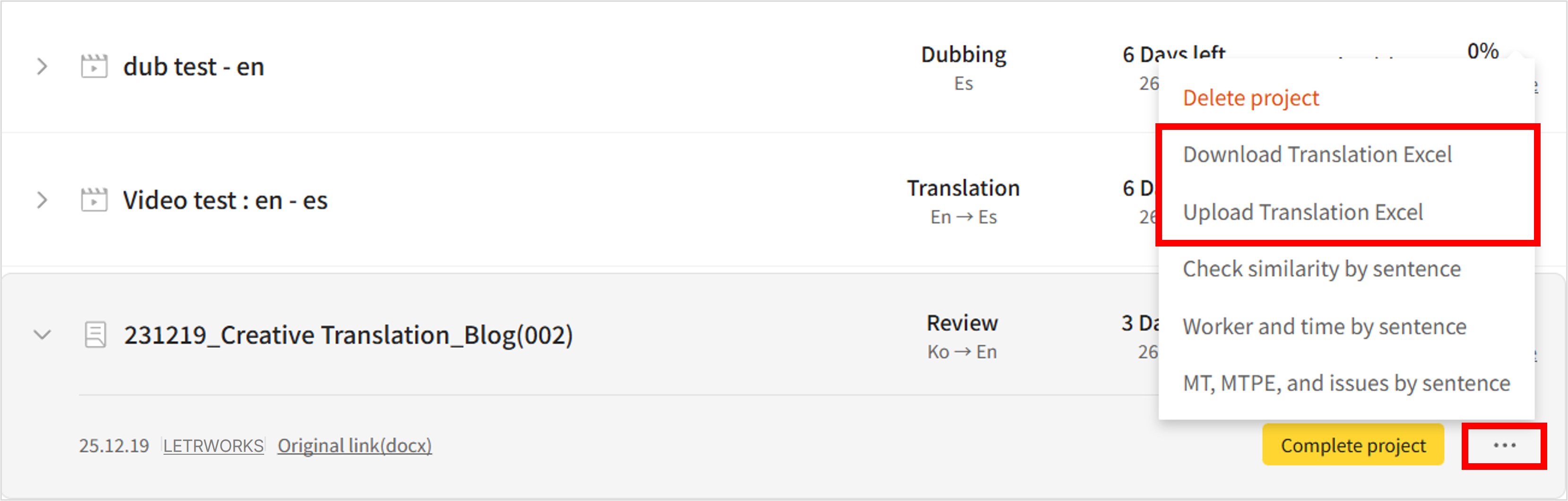
Previously, text projects only supported downloads in the original file format. With this update, we have introduced a new feature that allows you to download and upload text projects in Excel format.
This feature can be accessed via the More (···) menu of the respective project in the Workspace. By viewing the source and translated text side-by-side in Excel, you can manage projects and perform quality assurance (QA) more effectively.
-Text Editor Alignment: Fixed an issue where text alignment was not functioning correctly in the text editing screen.
-Shortcut Keys: Fixed a bug where the Ctrl+Z (undo) shortcut was unresponsive in the text editor.
-Video Word Editing: Fixed an issue where specific words could not be modified in the video editing screen.
-Subtitle Replacement: Resolved conversion errors occurring during subtitle replacement tasks.
-Playback Speed Shortcut: Fixed an issue where shortcuts for video playback speed were not working.
-Bulk Subtitle Movement: Fixed a bug where subtitle spacing was unintentionally altered when moving subtitles in bulk.
-Image Editor Performance: Improved a lag issue where typing was delayed in the image editing screen.
-Sentence Selection UI: Fixed a discrepancy where the selected source sentence did not match the actual displayed area.
-Character Count Logic: Updated the system to exclude Italic (%%) and Top-aligned Subtitle (^^) markers from the total character count (calculated as 0).
-Transcription Markers: Fixed an issue where character counts for double transcription markers were calculated incorrectly.
-Text Project Completion: Fixed a bug where the progress on the "Complete" button for text projects was incorrectly displayed as 0%.
-Avatar Selection Logic: Resolved an issue where the progress display showed errors when an avatar was selected in text projects.
-Image Project Progress: Fixed a display error regarding the overall progress rate in image projects.
LETR WORKS remains dedicated to continuous research and development as we strive to provide better performance and more convenient features.
This update introduces several powerful new tools designed for practical business use, including the Media Content Kit and LLM Translation Prompts. We encourage you to take full advantage of these features to enhance your workflow.
We look forward to bringing you even more useful features in the future.
Thank you.
